My old PC is a 512MB RAM, 1.8 MHz Intel processor. I’m using Windows XP with Internet Explorer 8. When I browse internet my computer processor usage is 100% and I can’t even scroll-down smoothly. Any way to improve my computer performance on internet?
photo credit
This problems are very often nowadays. Old computers are mainly used only to browse internet. You can’t use them to play modern video games or other hardware consuming tasks so you say … I will use it only for internet. The problem is that a preconception still exists and says you don’t need modern/performance computers to browse internet – if is just internet then your 8 years old PC is the same as a new one. And that’s Wrong!
Internet changed enormous it the last few years. Faster computers, faster and increasing number of internet connection and mobile internet led to completely new ways to experience the internet. If internet was used a few years ago only to transmit some information as text and images now it’s completely changed. Games, Music, Movies, Chat, Social activities, editing text documents and presentations and much more are all made without leaving your browser. Google guys was right, we basically spend almost all of our time in front of a web browser and just a few moment with other software. Being able to include all of this activities in a browser means modern website technologies and modern internet browsers.
Old computers can’t keep up with rapidly changing internet. Using some modern internet applications you are asked for a certain minimum hardware resources – processor speed, memory and even video card. Also, the new HTML5 and modern websites includes a big number of scripts. These scrips are small pieces of software downloaded from a website and executed on your local computer. All of this scripts are more and more complex and offer a beautiful web experience but also are slowing down a computer very easily. Same with those big flash advertisements who contribute a lot on hardware consumption. This is why browsing the internet became so hardware consumption in our days and this is why you actually need fast computers to take part in this rich experience.
Some modern solutions to this modern problems of old computers.
1. Use a modern Browser. The best way to browse internet is using a modern browser. Using an old version of Internet Explorer is a strange and poor visual experience, is extremely unsecured and even more hardware resource consuming. Install Firefox or Google Chrome!
2. Block unnecessary scripts.
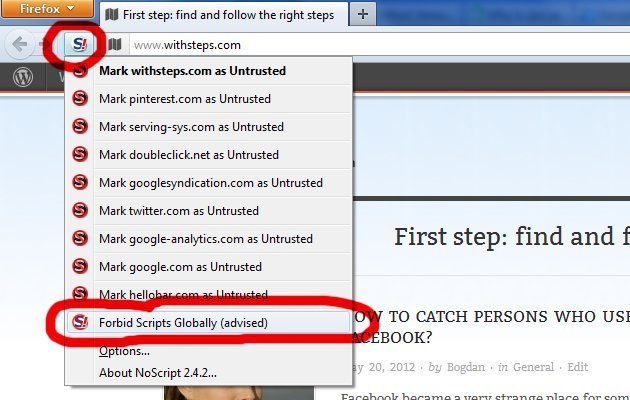
For firefox install NoScript addon and set it to block(forbid) Script globally.
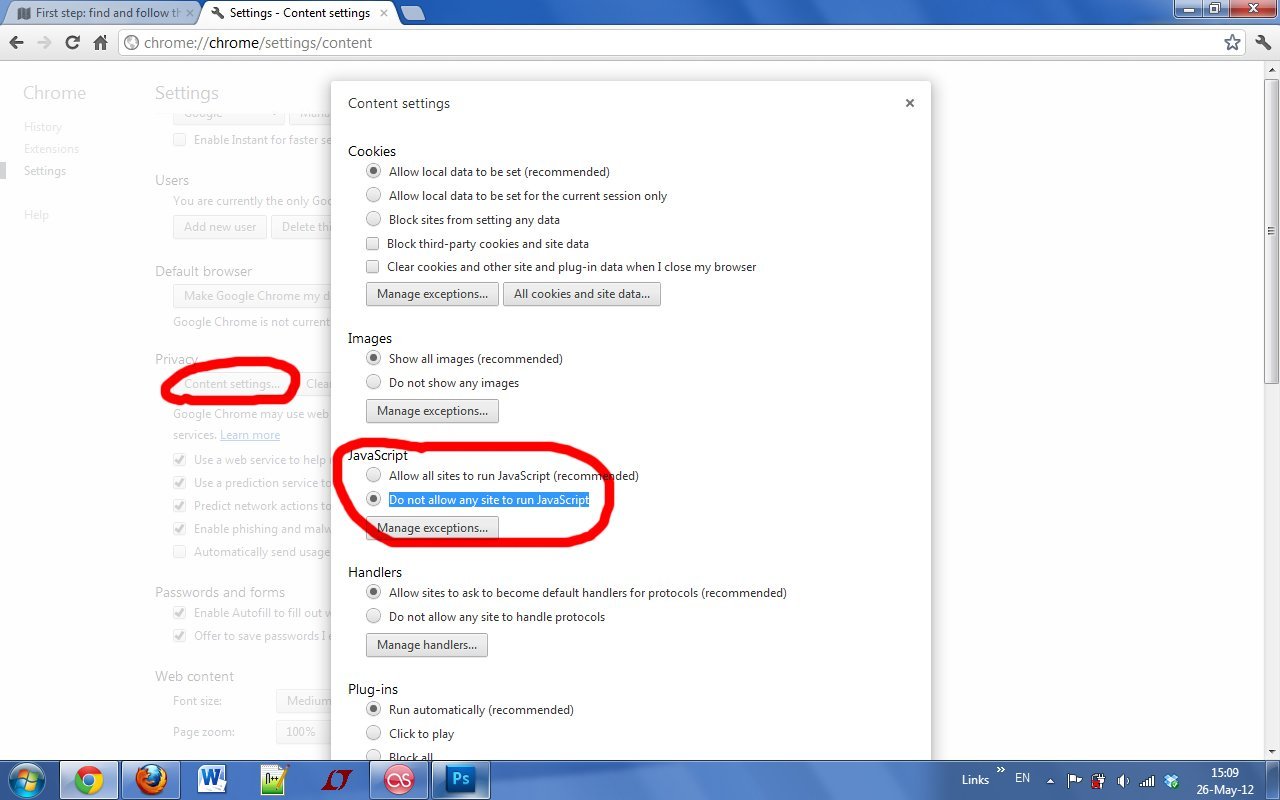
In Google Chrome, go to Browser settings
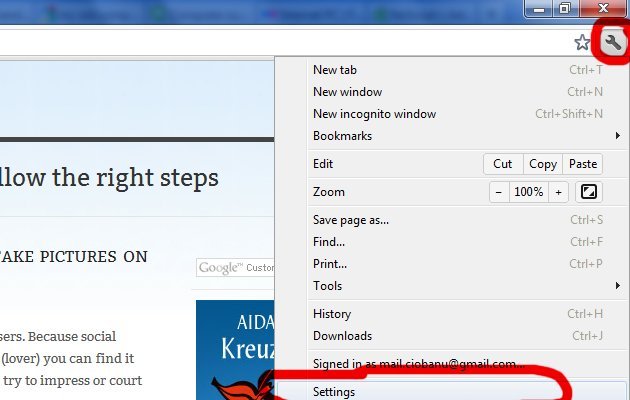
On the bottom of this page click on “Show sdvanced settigns…”. Find the Privacy settings and click on “Content settings…” button. Go to JavaScript options and choose “Do not allow any site to run JavaScript”.

3. Carefully allow scripts to be executed. Because all the scripts are blocked, some of the websites will not be able to offer you parts of it’s content. For example you will not be able to see YouTube videos and that’s not cool. Ok it’s loading very fast but you need to listen some music or whats a video. No problem, just allow the scripts that make this function.
In case of Firefox it’s very nice because you can allow each individual script from a webpage or allow all. In case of Google Chrome you can only allow all scripts, no individual. The fact that you can allow individual scripts to be run is very useful and important for old computers. And that’s because you can allow, for example, only the scripts that allow that YouTube video to be played and still disable ads and other hidden scripts that will make your video to run slow.
 NoScript Firefox Addon – Allow option

Chrome Allow scripts option
Conclusion. You can have a lot better and faster user internet experience even using an 8 years old PC. You only need to understand why browsing internet is so hardware consuming and what are the solutions. Using a modern updated browser you will keep up with modern and complex websites and also dramatically improve browsing speed.