How to change Control Panel to Classic View in Windows 7

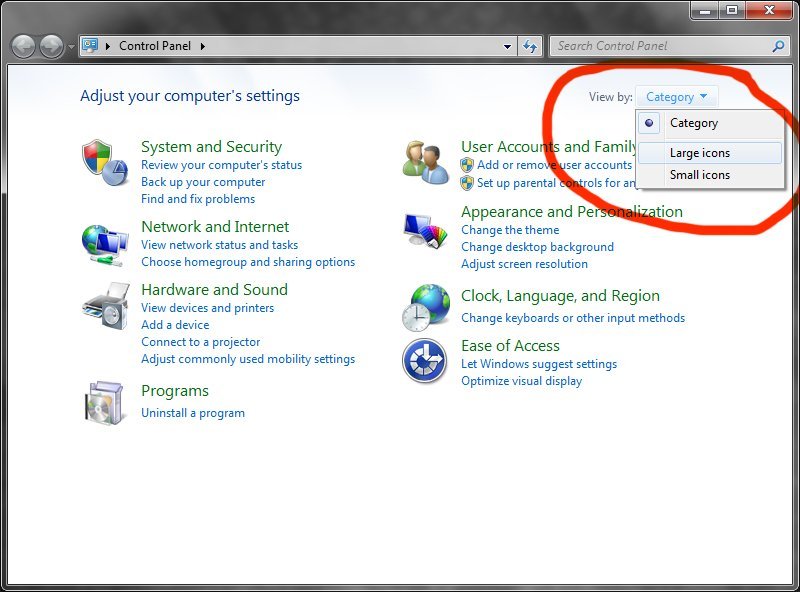
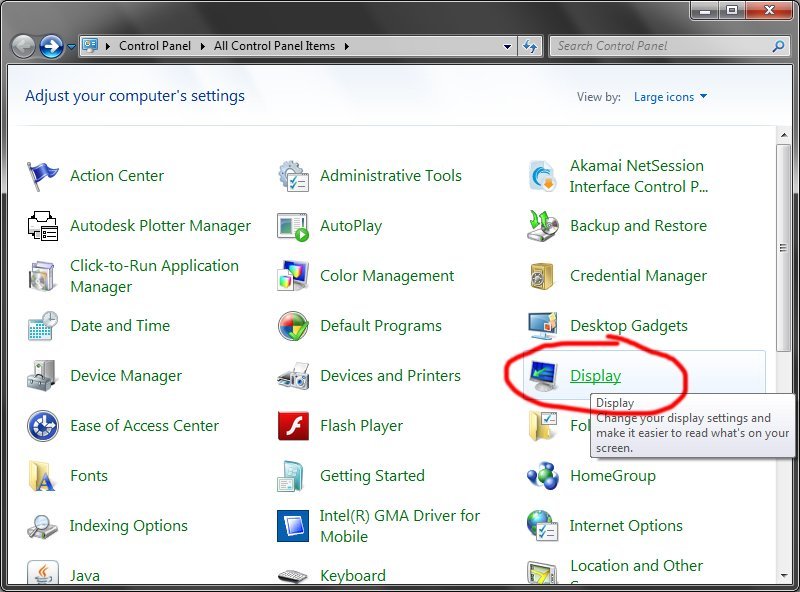
Control Panel in Windows 7 is more compact and intuitive with categorized actions (options). But for some users this compact way means some additional unnecessary clicks. This is why a more classic view (more like that in Windows XP) is more practical. To change the Control Panel view you have to:

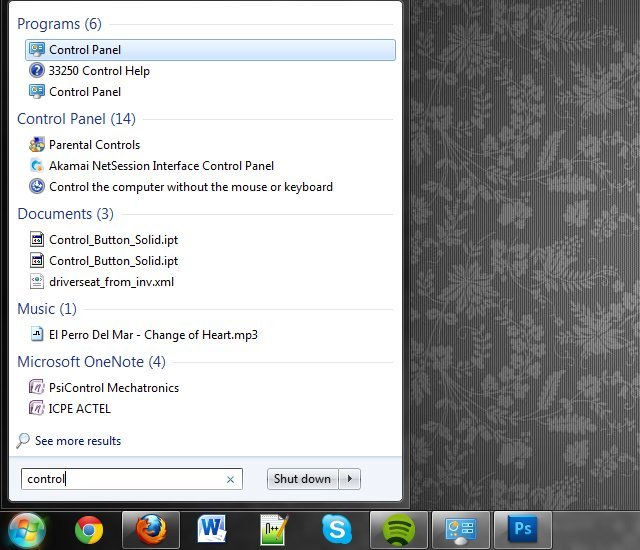
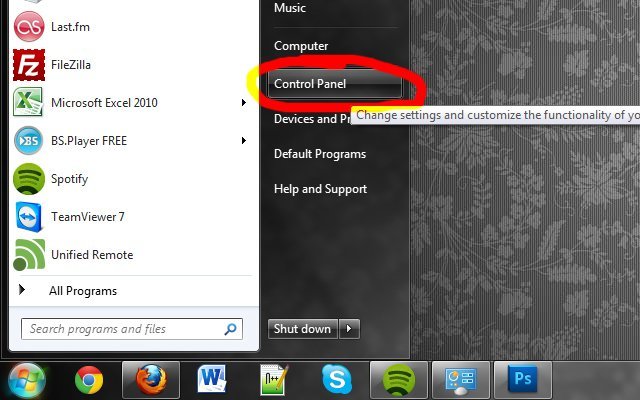
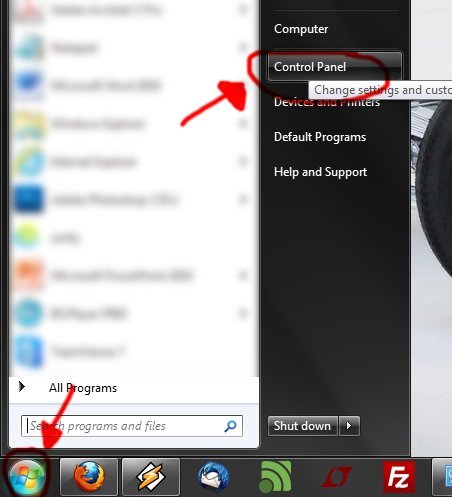
1. Go to Control Panel. Click on Start icon and type “Control Panel” and hit enter or just click on your Control Panel option.

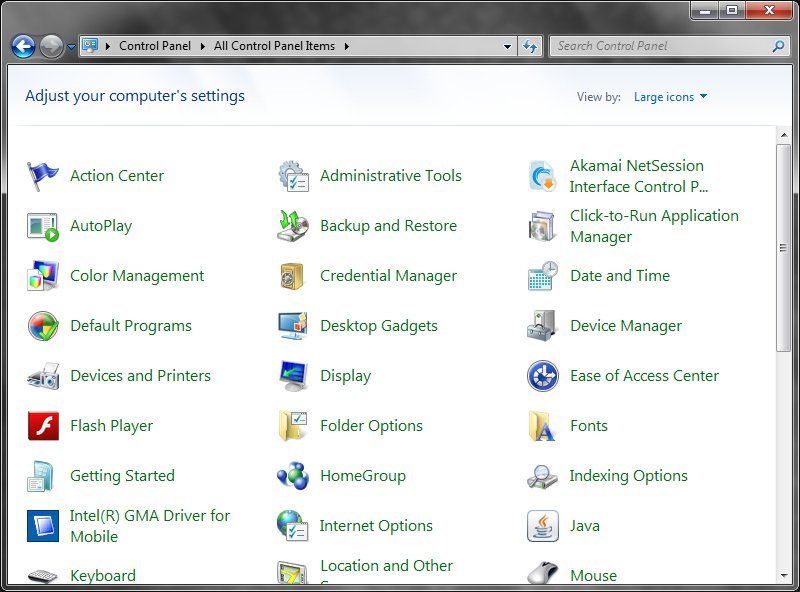
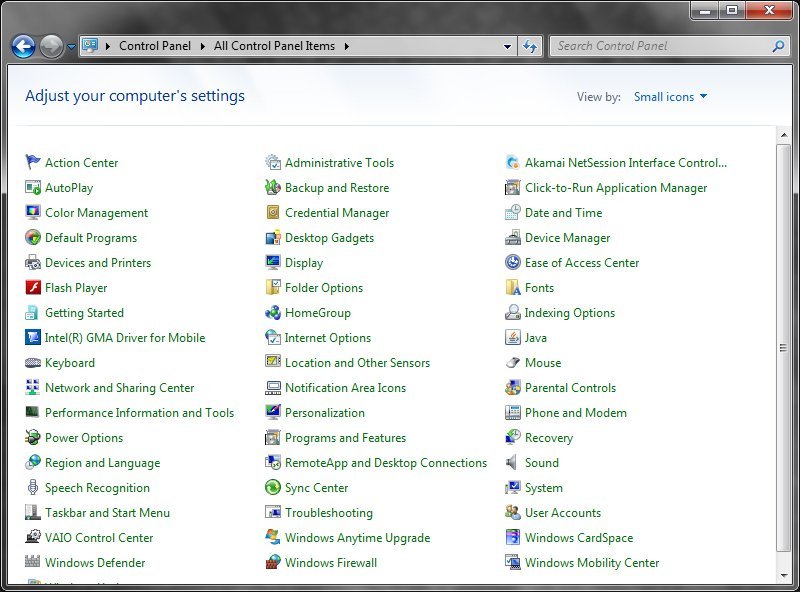
2. Change view from the “View by” option in the top right of the window. Change it from Category to Large all Small icons.

Large icons view:

Small icons view:


Posted by Bogdan on May 16, 2012 | Posted in General | Tagged , , , , | Comment

How to remove Recycle Bin icon from Desktop?

One of the most common icon you can see on desktop computers is the “Recycle Bin” icon. For various reasons you may want to remove that icon. To do that you have to:

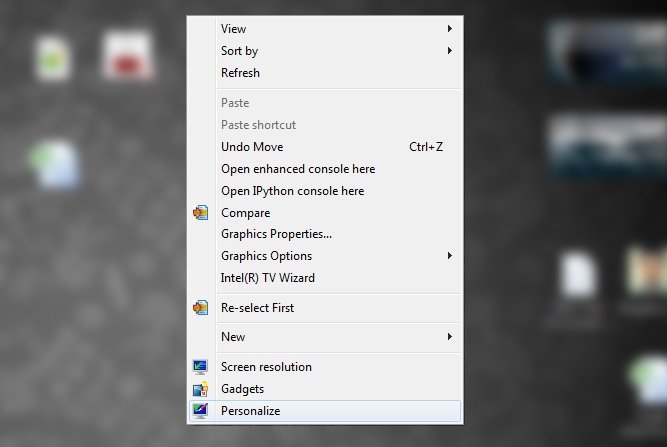
1. Right click on desktop and choose the last option “Personalize”

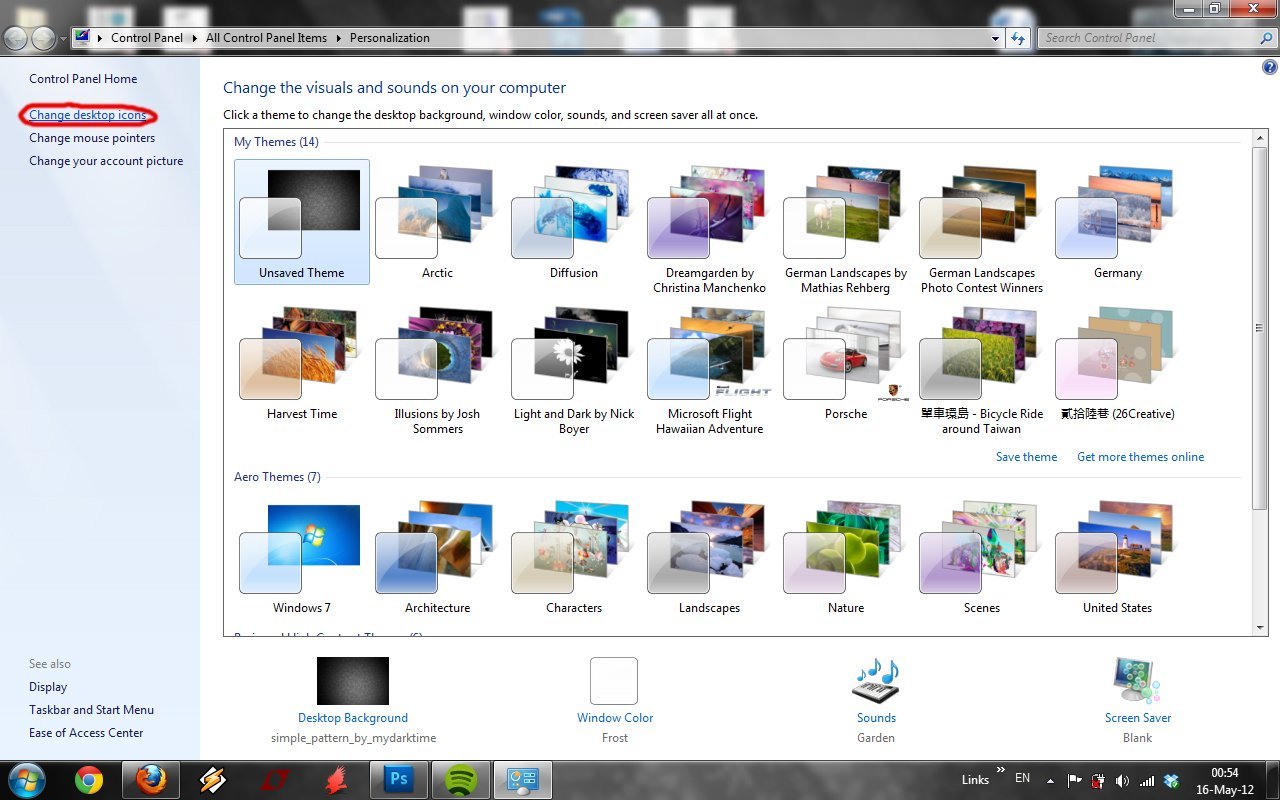
2. A new windows appears. Click on “Change Desktop icons” link from the top-left side of the window.

3. Remove the selection of Recycle Bin icon.


Posted by Bogdan on May 15, 2012 | Posted in Tutorials | Tagged , , | Comment

How can I change my computer username?

This post can be applied when you:

  • want to simply change your username (administrator, without creating a new username)
  • bought an old computer and want to personalize it without reinstalling it’s Windows
  • want to change your network name

If you want to change your computer in order to have a new desired name you have to:

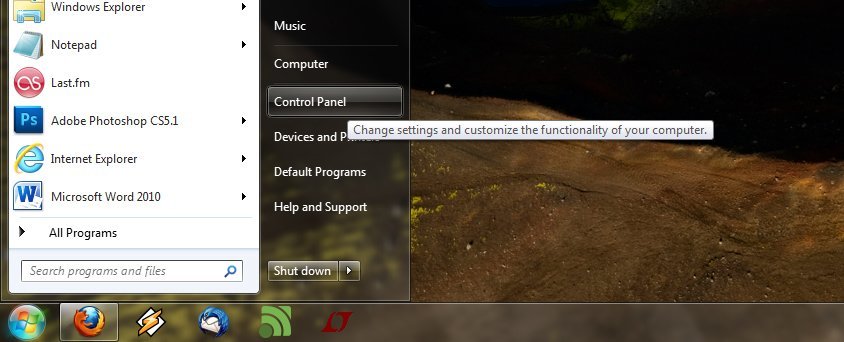
1. Click on Start button and Control Panel

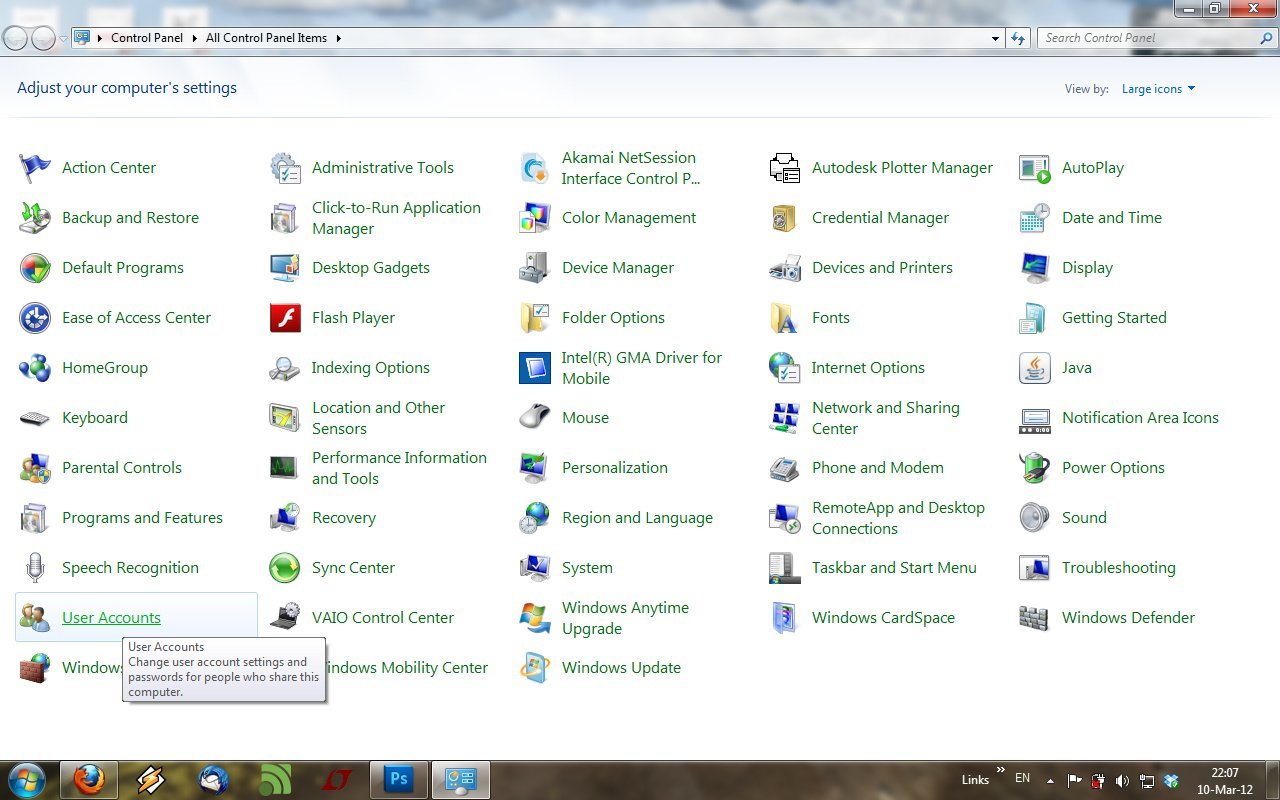
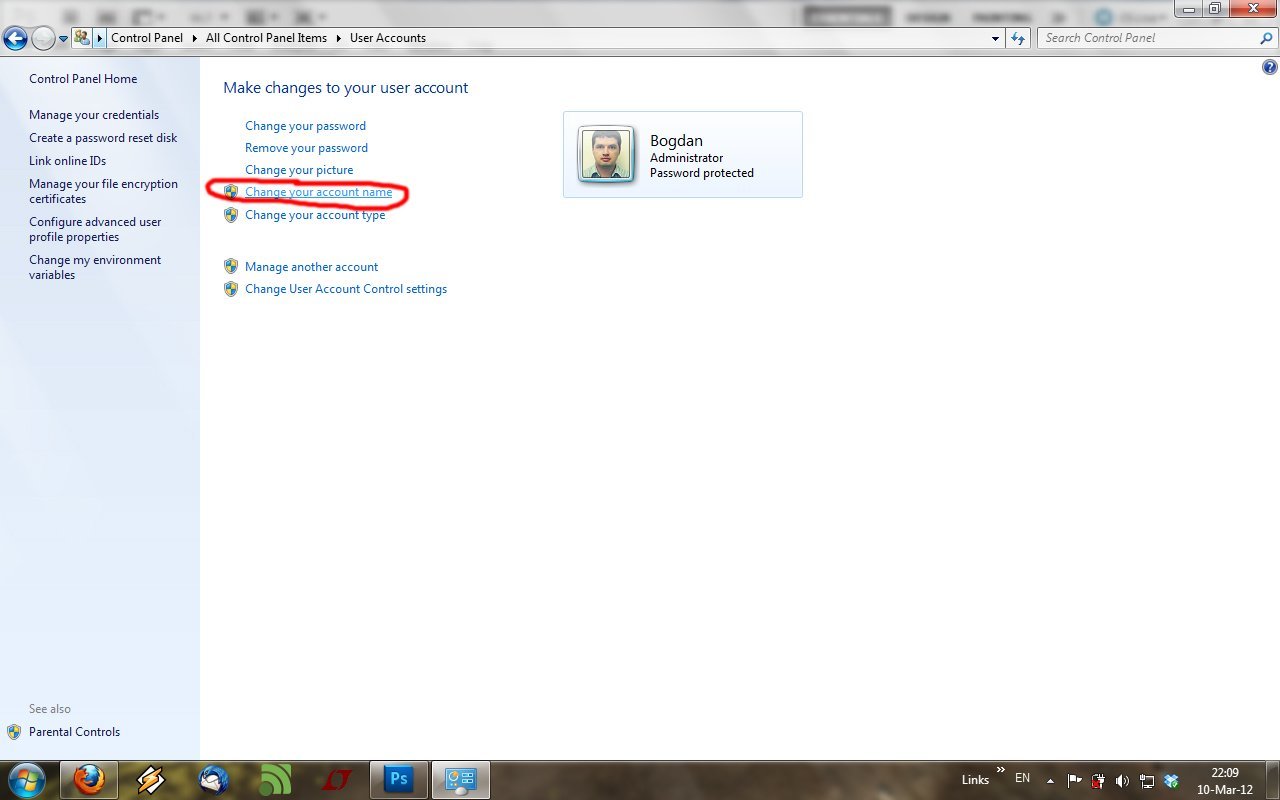
2. Open “User Accounts

3. Click on “Change your account name

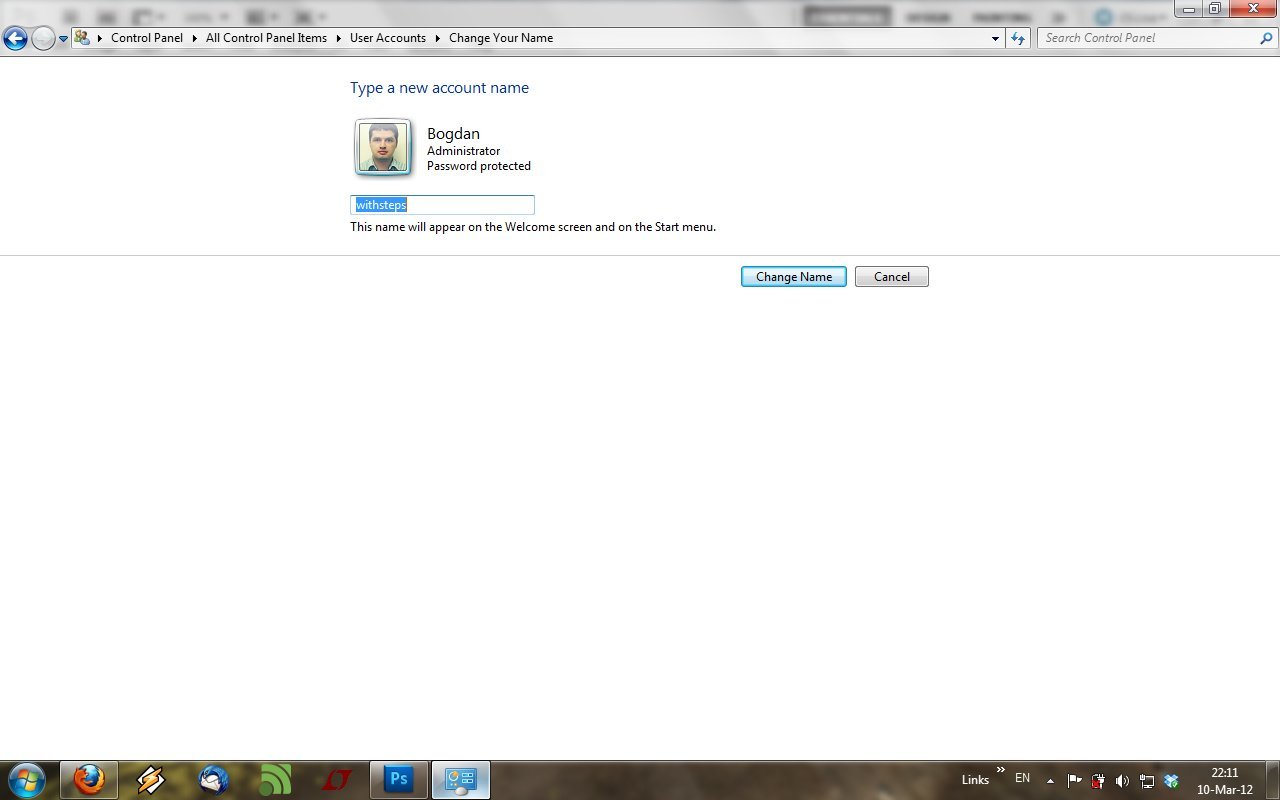
4. Type a desire username and click “Change

5. Optional. If you want to change your computer name (network) you have to:

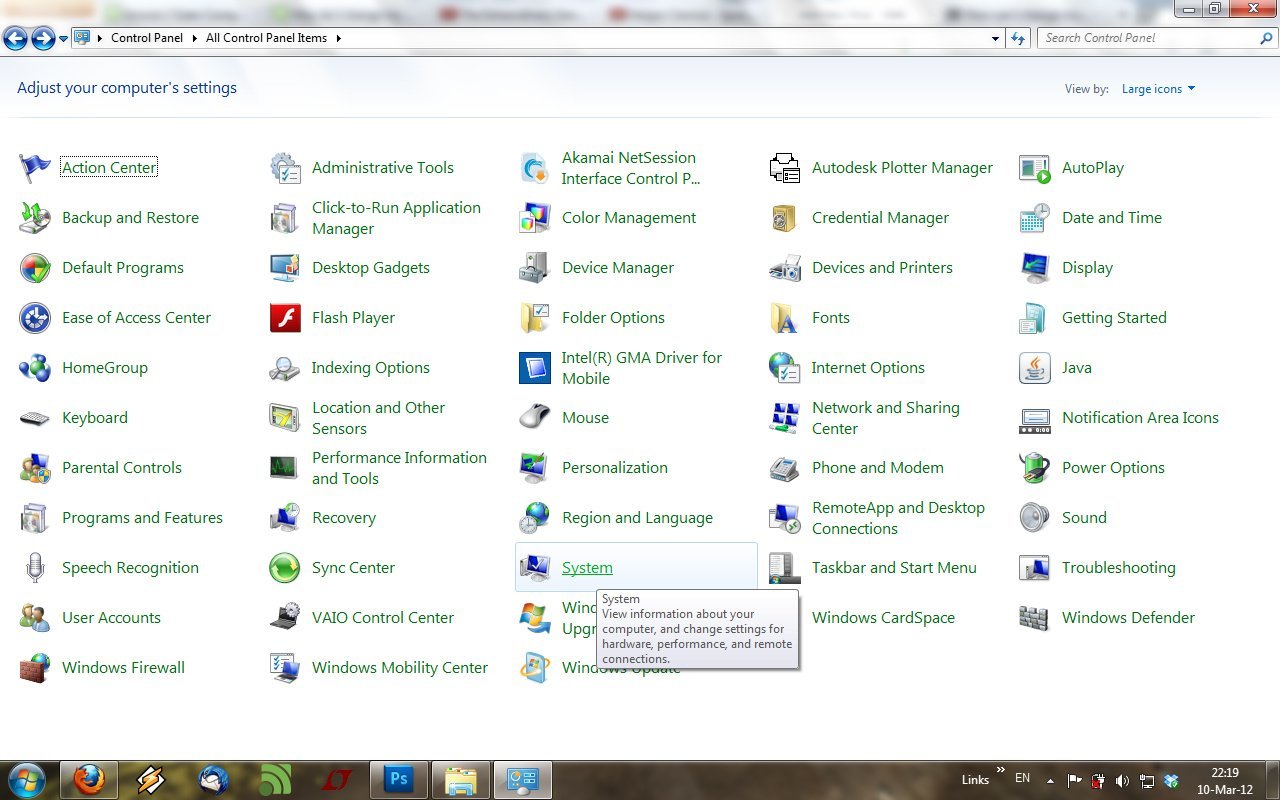
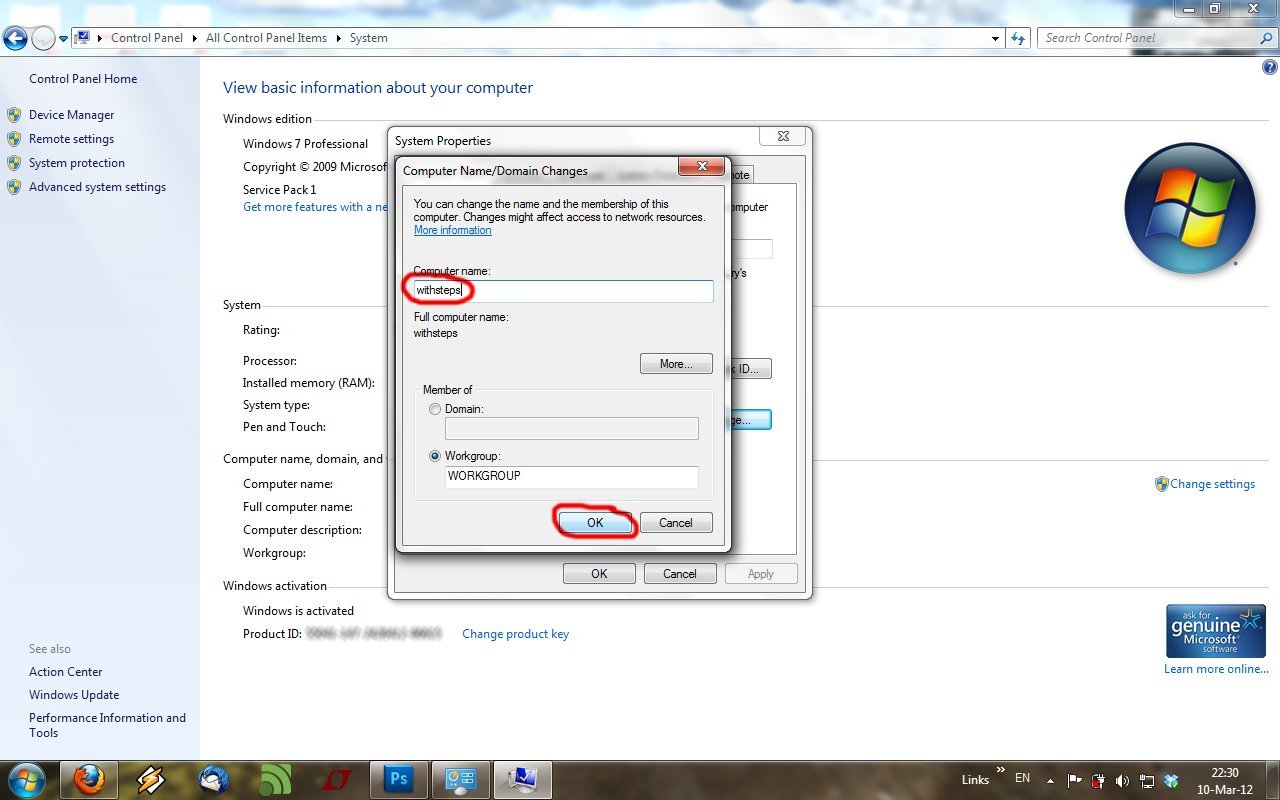
5.1 Go to Control Panel -> System

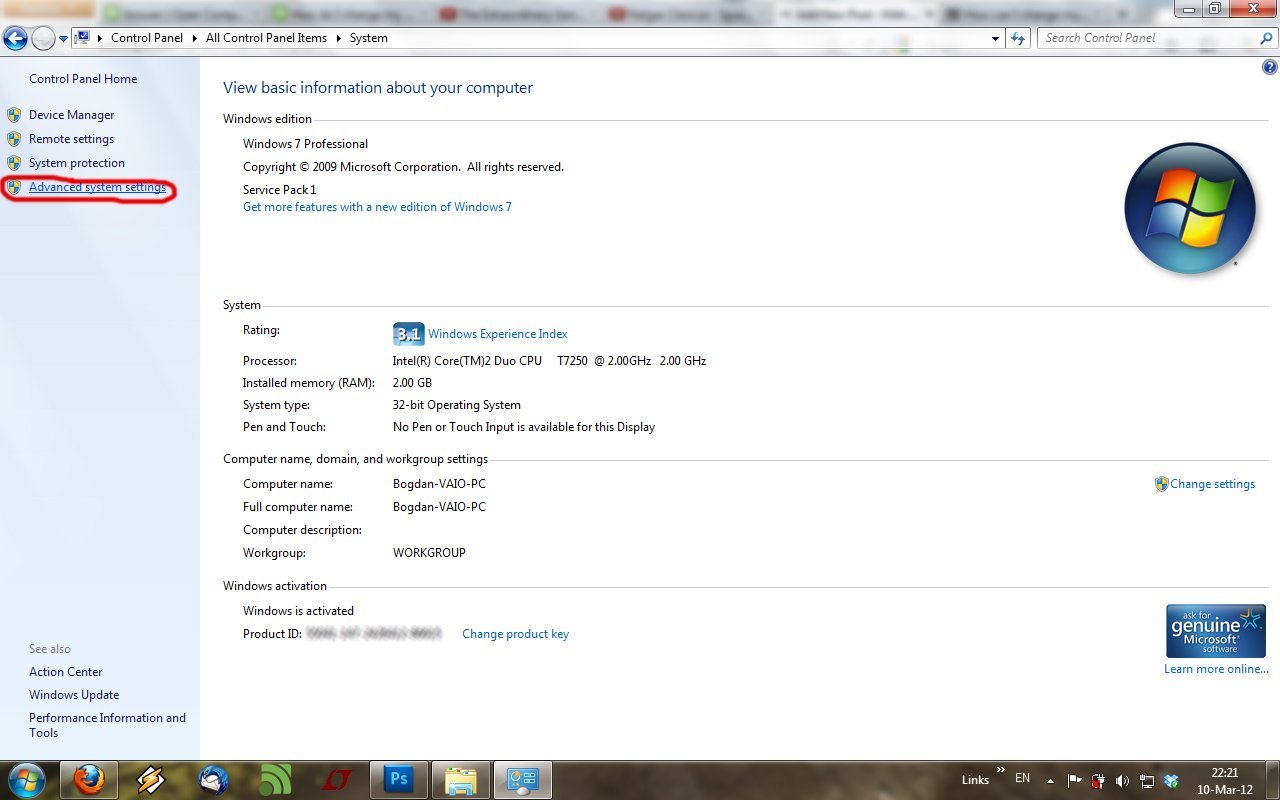
5.2 Click on “Advanced system settings” from the right list

5.3 In the new window go to “Computer Name” tab and click on “Change…” button.

5.4 Type desired name in “Computer Name” field and click OK.

Restart your computer and that’s all.


Posted by Bogdan on March 10, 2012 | Posted in Tutorials | Tagged , , , , , , | Comment

How can I find out my Windows Installation Date?

Today one of my friends asked me if I can find out what is his Windows Installation date. This can be find very easily and because some of you may be interested in this I thought to share it with you.

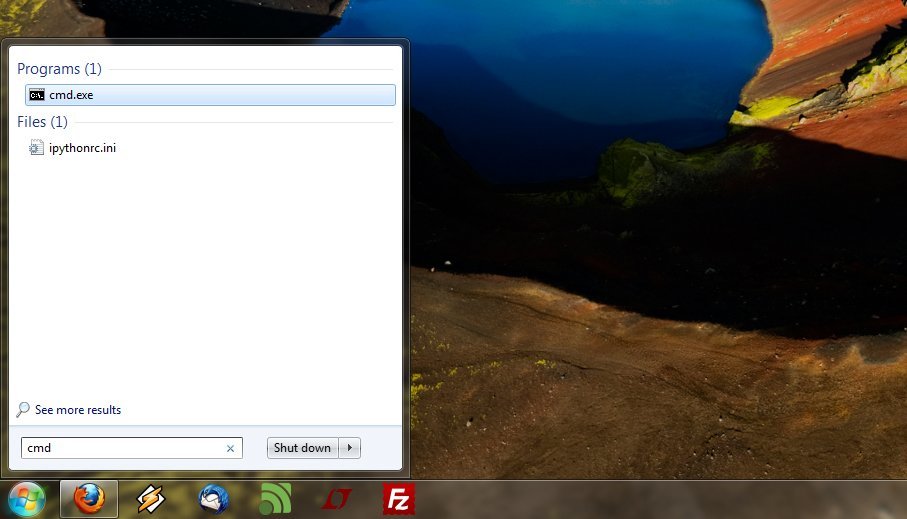
1. Click on Start button, type CMD and press ENTER key

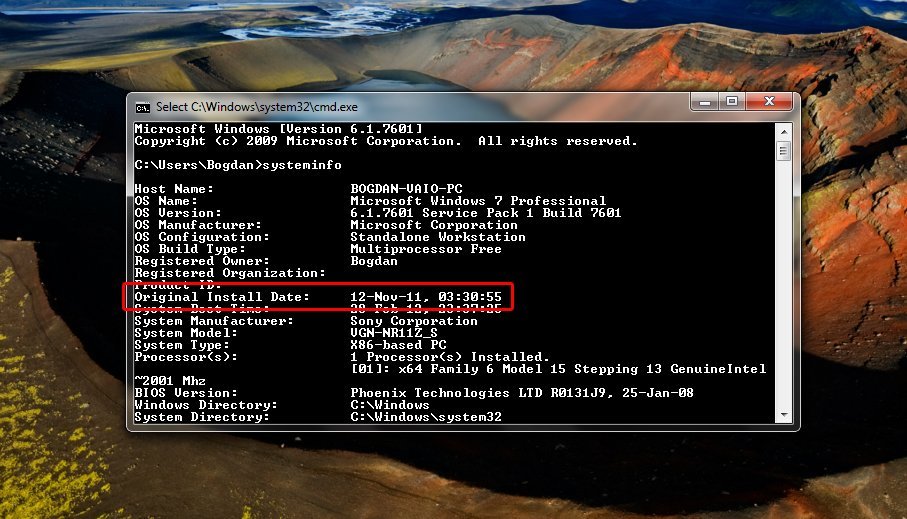
2. Type “systeminfo” in the command line.

A list of information will appear. Look after “Original Install Date:”. And this should be your windows installation date and time. Have fun!


Posted by Bogdan on February 28, 2012 | Posted in Tutorials | Tagged , , , , , , , | Comment

Program still needs to close: Winamp – Force Restart?

If you use Winamp in Windows 7 you may be familiar with this message:

One program still need to close:

(waiting) winamp.exe

To close the program that is preventing Windows from shutting down, click Cancel, and then close the program.

“Force shut down” | “Cancel”

It appears when you try to shut down your computer and have Winamp running. Fortunately, this error was resolved with the new update of Winamp. If you encounter this error go to winamp.com and download the last version.

http://www.winamp.com/media-player/en


Posted by Bogdan on October 1, 2011 | Posted in Software | Tagged , , | 2 Comments